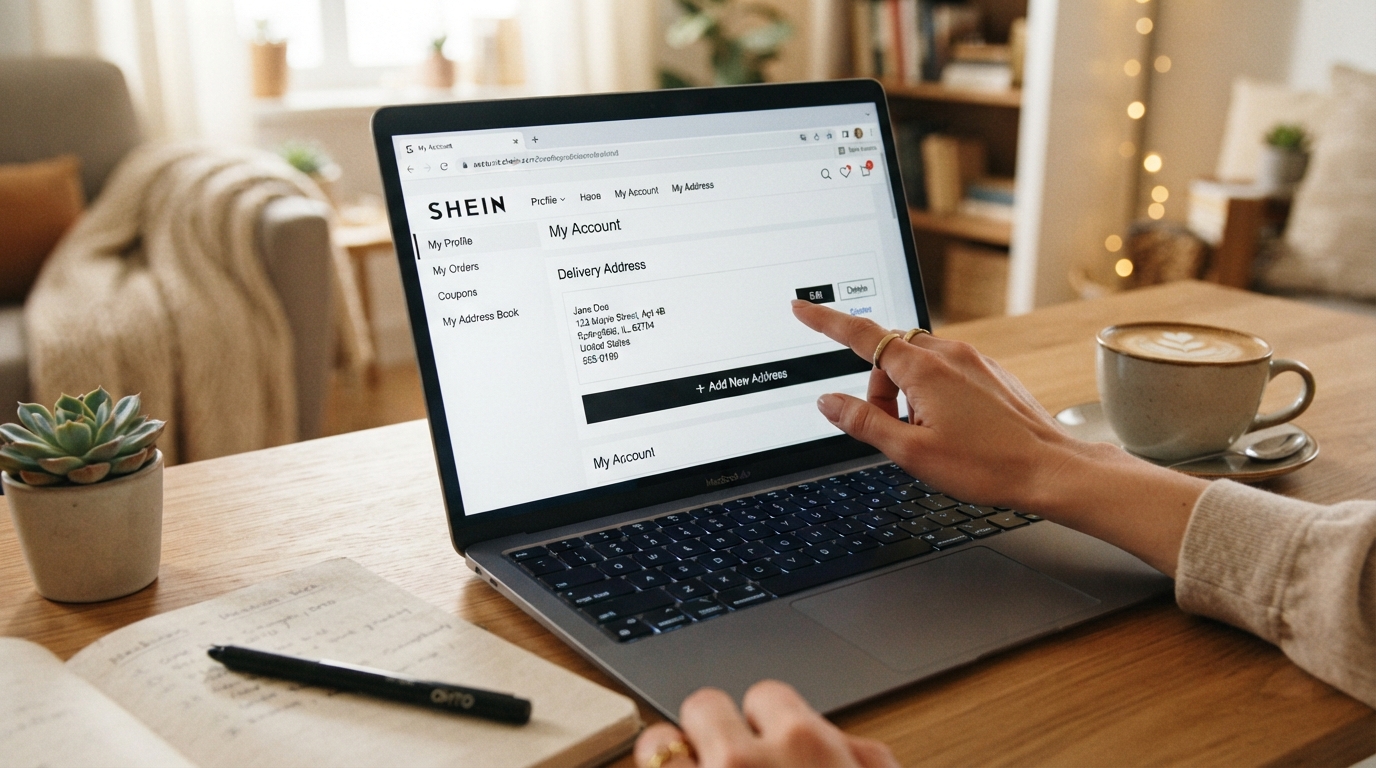
How to Save Favorite Products on SHEIN
Have you ever felt the frustration of finding an amazing item during a quick search, only to lose track of the link moments later?
Knowing how to save your favorite products on SHEIN completely transforms your browsing experience, allowing you to organize your choices at your own pace, compare prices more easily, and keep an eye out for any potential discounts.
Today, we’ll walk through the steps to master this feature and make the most of your time on the platform.
How to add an item to your favorites via the app
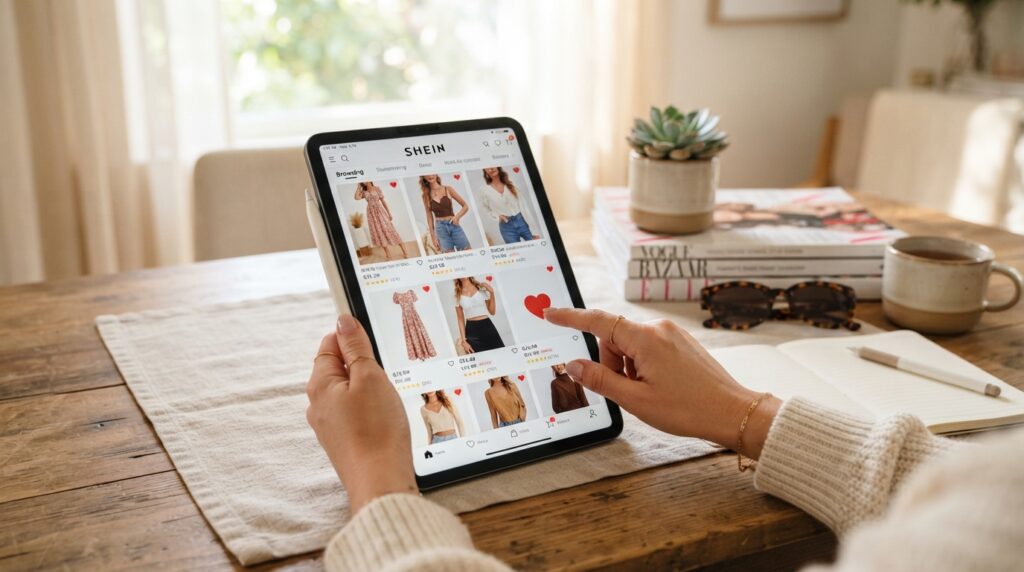
Learning how to save products in the SHEIN app makes your browsing experience much more efficient. With just a few taps, you can organize your selections and ensure that nothing gets lost while you’re searching for new finds.
Finding products via search or categories
To get started, use the search bar at the top of the screen or browse through the categories in the main menu. As you explore sections like clothing, accessories, or home goods, you’ll discover a vast array of options that suit your personal style.
Once you find an item that catches your eye, simply click on it to open its product page—a great way to check out photos, descriptions, and reviews from other users before deciding to add it to your favorites.
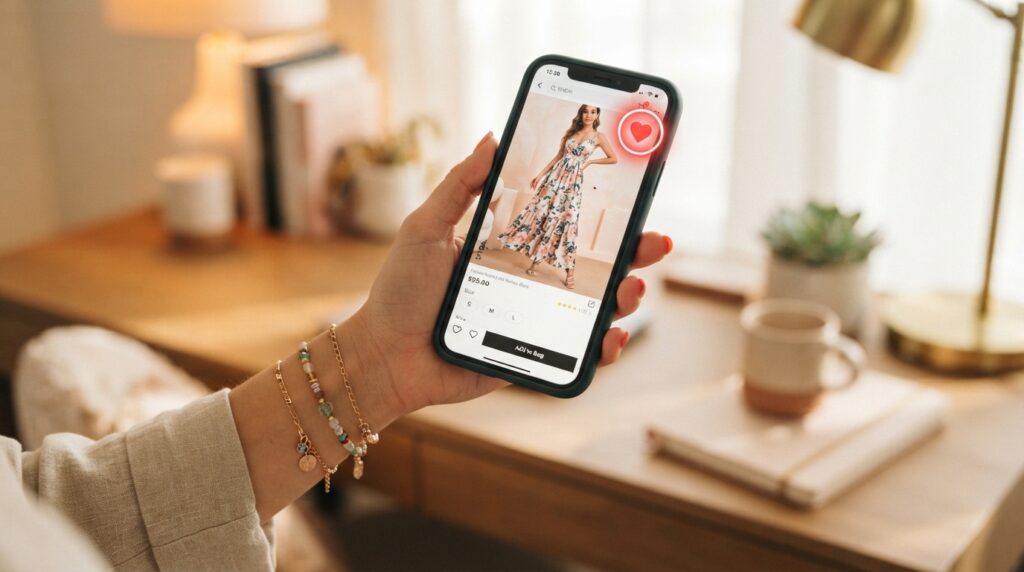
Tapping the heart icon on the product page
On the product page, you’ll see a heart icon located near the item’s name or price. This is the classic SHEIN “heart,” which acts as a quick shortcut for saving your preferences.
When you tap this icon, the item is added to your personal list. It’s a convenient way to keep everything organized without needing to complete a purchase right away.
Saving items directly from the product gallery
You can also speed up the process while browsing the main product gallery or your search results.
Often, a heart icon appears directly on the product image, allowing you to mark the item as a favorite without having to open its individual product page. This feature is ideal for those who want to quickly save products within the SHEIN app while browsing through various pages of new arrivals. A single tap is all it takes to register an item instantly.
How to confirm that an item has been added
After tapping the icon, check to see if it changes color or fills in completely; this indicates that the action was successful. Typically, a brief animation or an on-screen message will confirm that the item has been added to your wishlist.
What to do if the heart icon doesn’t appear
If the SHEIN heart icon is not visible, check whether your internet connection is stable or if the app requires an update. If the issue persists, try closing and reopening the application to force the interface to refresh.
How to save favorite products on the SHEIN website
If you prefer to shop using a computer, managing your favorite items is very simple. The SHEIN website features an intuitive interface that allows you to organize your selections with ease as you browse through the latest arrivals.
Log in to your account before saving products
To ensure all your items are saved correctly, the first step is to log in to your personal account. Once logged in, the system automatically syncs your preferences across different devices.
If you attempt to save an item while not logged in, the system will prompt you to enter your credentials. Staying logged in is the best way to ensure your saved products are always available for future reference.
Add items to your wishlist from the product page
When you find an item that catches your eye, click on the product page to view its details. Look for the heart icon, which is typically located near the “add to cart” button.
Clicking this heart icon instantly adds the item to your wishlist. This quick action allows you to continue exploring the catalog without any interruptions.
Use the heart icon on category pages and in search results
You can also speed up the curation process while browsing through category pages or search results. Often, the heart icon appears directly over the product image, allowing you to save items without needing to open each individual product page.
This feature is perfect for those who want to build a list of options quickly. Simply hover your mouse over an image and click the heart icon to mark the items you like most on the SHEIN website.
Ensure your browser is loading all features
If you notice that the heart icon is missing or that images fail to load, there may be a temporary connection issue. Try refreshing your browser page to ensure all visual elements load correctly.
If the problem persists, check whether your internet connection is stable. Clearing your browser cache can also often resolve display issues, ensuring that you are able to save your favorite items without any difficulty.
Where to find and view your list of favorites
Do you know exactly where all the items you’ve marked with a heart are kept? Accessing your list of favorites is a very simple process, allowing you to revisit your choices whenever you like.
Opening the favorites section in the app
To view your items on your mobile device, simply tap the “Profile” icon located in the bottom-right corner of the screen. Within your account menu, you will find a section dedicated to your saved items.
By clicking on this option, all the products you previously marked will appear, organized in a grid—making it easy to manage your favorites as you browse through the app.
Locating your wishlist on the desktop version
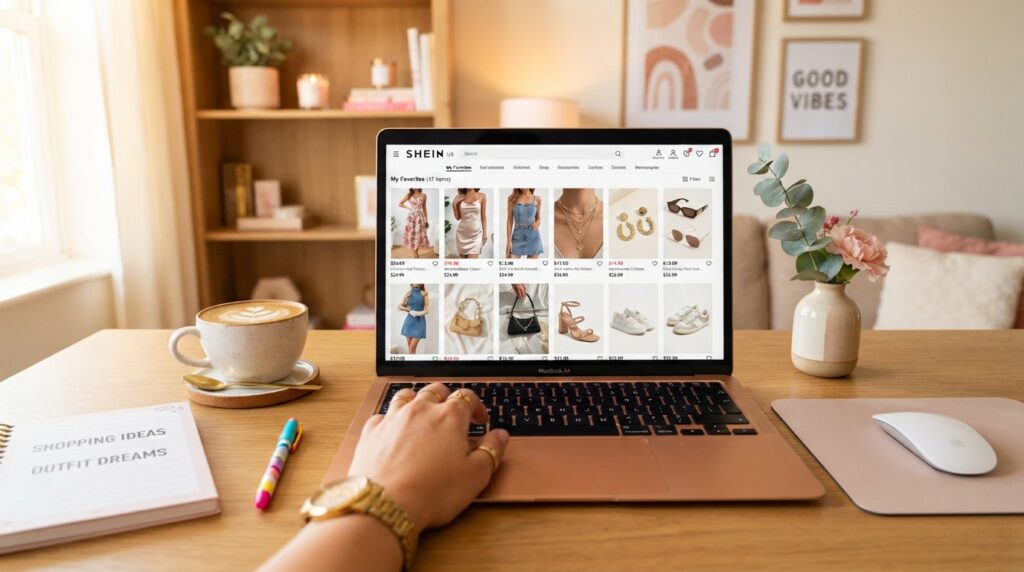
If you prefer using a computer, accessing your list is just as convenient. Look for the heart icon in the site’s top menu, usually positioned near the shopping cart icon.
Clicking it will take you to a page where all your items are gathered. This space centralizes everything you selected during your previous browsing sessions.
Checking prices, sizes, and availability without leaving the list
One of the biggest advantages of keeping a list of favorites is the ability to monitor your items without having to open each individual product page. You can see the current price, available sizes, and whether the product is still in stock.
This overview saves time and helps you decide which items are worth adding to your cart. It’s an excellent way to keep track of inventory changes in real time.
Refreshing the page to see recent updates
If you feel the information displayed isn’t up to date, simply reload your browser page or pull down on the screen within the app. This quick action ensures you see the latest prices and the most current availability for every item.
How to organize your saved products so you can find everything quickly
Keeping your wishlist organized is the secret to a much more efficient shopping experience. When you accumulate too many items, finding what you actually need can become an unnecessary challenge.
Good organization turns your personal showcase into a functional space, helping you plan your purchases with much greater clarity and speed.
Categorizing clothing, footwear, accessories, and home items
The best way to start is by categorizing your items by type. Try grouping clothing, footwear, accessories, and home decor items logically.
This visual division makes navigation easier when you’re looking for something specific. You won’t waste time scrolling endlessly to find a home item buried among piles of clothes.
Creating lists for different occasions and styles
Another smart strategy is to separate your favorites by purpose. You can create groups for formal events, work attire, or even for refreshing your everyday casual style.
This segmentation allows you to view only what is relevant to the moment. Having themed lists makes the selection process much smoother and more enjoyable.
Comparing colors, styles, and reviews before deciding
When reviewing your saved items, take the time to check key details. It’s essential to verify the available sizes and colors to ensure the item meets your expectations.
Additionally, take a moment to evaluate SHEIN products by reading reviews from other shoppers. Comparing different styles helps you make a more informed and confident decision.
Keeping only the items that still interest you
Periodically declutter your wishlist. If an item no longer fits your style or your interests have changed, don’t hesitate to remove it.
Keeping your list streamlined helps you focus on what truly matters, avoiding distractions from items you’re unlikely to ever purchase.
Remove duplicate items or products that are no longer available
Check for any duplicate items or products that are no longer in stock. Removing these items keeps your list up to date and organized.
Clearing out items that are no longer accessible saves you time. This ensures that every click on your list leads to a genuine purchasing opportunity.
Conclusion
Keeping an organized wishlist transforms the way you interact with SHEIN. By saving your preferred items, you can quickly compare different styles and make purchasing decisions with much greater clarity.
Review your saved items frequently to check for price changes or availability, ensuring you don’t miss out on special opportunities to get your favorite pieces.
Should you encounter any technical difficulties while managing your account or accessing your products, SHEIN support is available to assist you.