How to Change the Delivery Address on SHEIN
Have you ever completed an online purchase, only to realize immediately afterward that the information you provided was outdated? It’s a nerve-wracking situation, but rest assured—it can be resolved without any hassle.
Many consumers look for ways to change their delivery address on SHEIN to avoid issues like lost packages or unexpected returns.
Today, we’ll explore the best practices for keeping your account information accurate and up to date.
How to Change Your Delivery Address on the SHEIN App
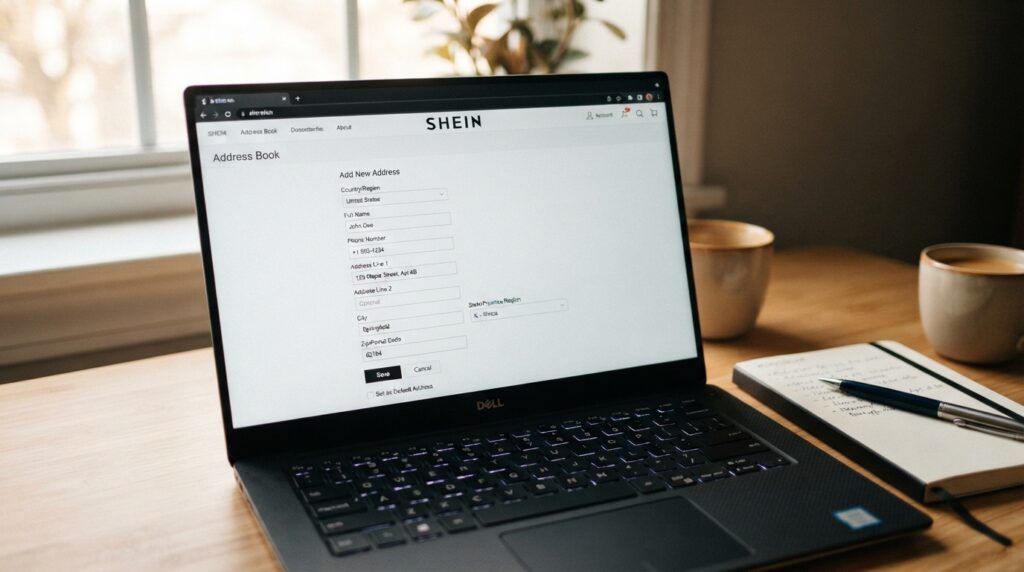
Keeping your delivery address up to date on SHEIN is essential to ensure your purchases arrive without any issues. The app offers a user-friendly interface that allows you to manage all your shipping information with just a few taps on the screen.
Accessing the address section of your account
To get started, open the app and tap the “Profile” icon located in the bottom-right corner. Then, look for the gear icon or the “Settings” section at the top of the screen.
Within this menu, you will find an “Address” option. Clicking on it will display all the locations you have previously saved.
Adding a new delivery address
Whether you have moved to a new home or want to send a gift to someone, adding an address on SHEIN is very easy. Simply follow these straightforward steps:
- Tap the “Add new address” button at the bottom of the screen.
- Fill in all required fields, such as your full name and phone number.
- Enter your postal code (CEP) so the system can automatically fill in the city and state.
- Provide the street name, house number, and any additional address details, if necessary.
Editing or deleting a saved address
If any information is incorrect, you can quickly adjust it. Simply select the desired address from the list and tap the edit icon.
If you no longer use a specific location, you can also remove it. Just select the delete option to keep your list organized and avoid confusion during checkout.
Setting a primary address for future purchases
To speed up your future shopping, you can mark a location as your default. By setting a delivery address on SHEIN as your primary one, it will be automatically selected at checkout.
This feature saves time and eliminates the need to manually select a destination every time you place a new order.
Reviewing details before saving
Before confirming any changes, carefully check all the fields you have filled in. Errors in the house number, address supplement (such as apartment or unit number), or phone number can cause significant delivery delays.
Ensure that the postal code (ZIP code) is correct, as it is the basis for calculating shipping costs and managing logistics.
App permissions and updates
To ensure the process of adding an address on SHEIN works without errors, keep your app updated via your phone’s app store. Older versions may experience loading issues or synchronization problems.
Additionally, ensure the app has the necessary permissions to access your location if you wish to use the auto-fill feature.
How to change your SHEIN delivery address via the website
The SHEIN website offers an intuitive interface for adjusting shipping details. Using a web browser on a computer can be a great option if you prefer viewing information on a larger screen.
Accessing your SHEIN account via a web browser
To get started, visit the platform’s official website and log in using your credentials. Make sure to enter your registered email and password correctly to avoid any access issues. Locating the address management section
Once logged into your profile, look for the side menu or the user icon at the top of the page. Click on the “My Addresses” option to view all the delivery information you have previously saved.
Saving a new address or updating an existing entry
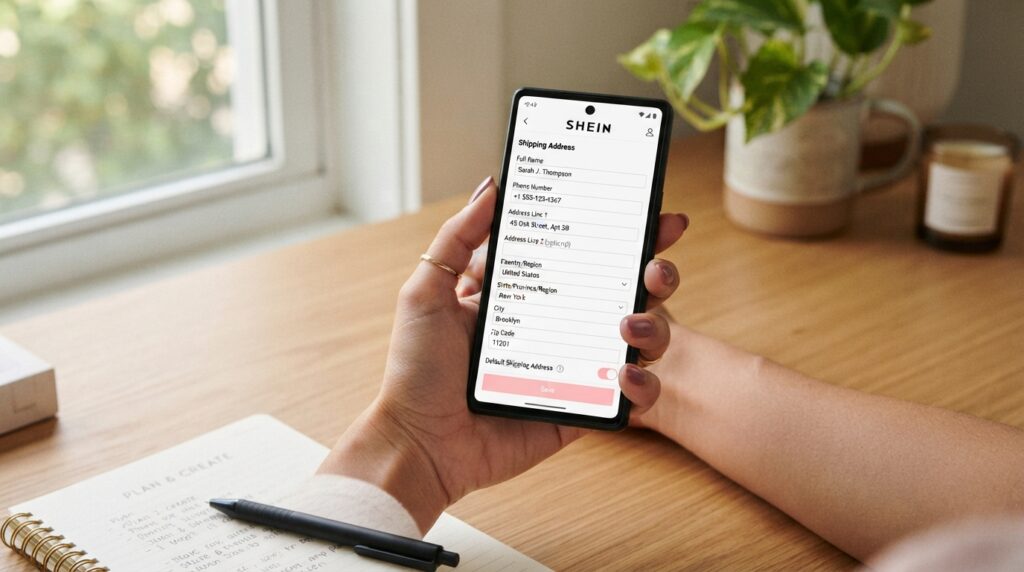
In this section, you will find the option to add a new location or edit an existing address record. Simply fill in the fields with the updated information—such as your postal code (CEP), street name, and house number—and click save.
Confirming changes before starting a purchase
Always verify that your primary address has been updated correctly before finalizing your payment. A quick check helps prevent your order from being sent to an incorrect or outdated location.
What to do if the address option does not appear
If the address section is not visible, try refreshing the page or clearing your browser’s cache. If the issue persists, ensure that you are logged into the correct account on the SHEIN website.
Handling differences between the website and the app
Although the structure is similar, there are slight variations in the visual layout between the two platforms. Some helpful tips for navigating without errors include:
- Synchronize your data whenever possible.
- Use the settings menu to find shortcuts.
- Check that your browser is up to date.
- Contact support if you come across any hidden menus.
How to change your address during checkout
Did you know that you can change the delivery destination for your order without needing to alter your account’s default settings?
The SHEIN checkout process offers the flexibility to choose the most convenient delivery location for each individual order.
Selecting a different address at checkout
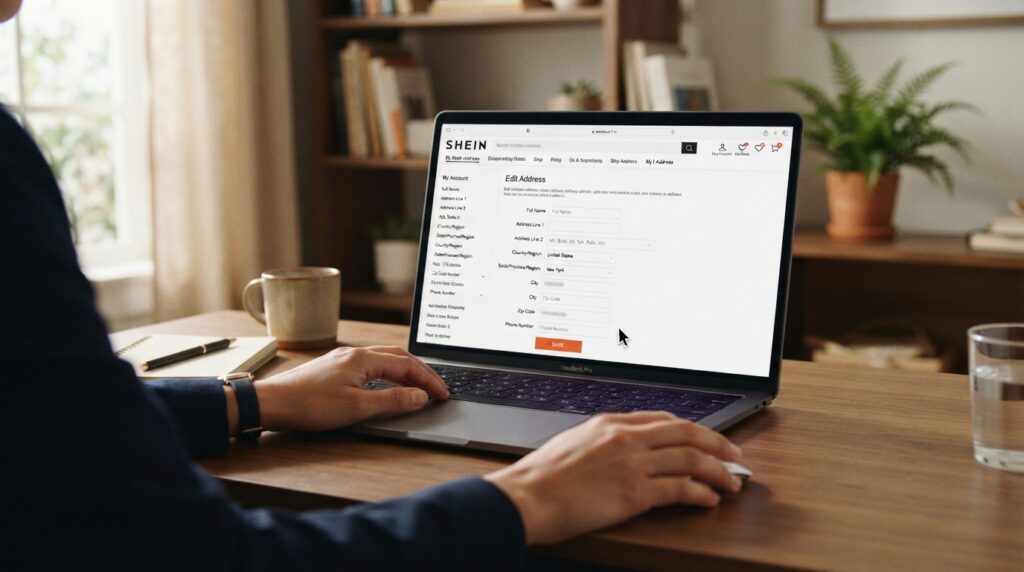
When you reach the checkout screen, you will see your default address. If you need to change it, simply click the edit option or the arrow next to the displayed address.
The system will display a list of all the addresses you have previously saved. Choose your desired destination and confirm your selection; the shipping cost and estimated delivery time will update automatically.
Adding an address without leaving your cart
Don’t see the location you need in the list? You can add a new address right at this stage, without having to leave your cart or restart the checkout process.
Look for the “add new address” button and fill in the required fields. Once saved, it will be available for immediate use for your current order.
Double-check your address before confirming your order
Before finalizing, it is essential to carefully review all your information. A simple typo can cause significant delays in the delivery of your package.
Reviewing your order summary
Pay close attention to the summary that appears on the final screen. Verify that the street name, house/building number, additional details (such as apartment or unit number), and postal code are correct—this is your last chance to make edits before the order is processed.
Distinguishing between your primary address and your selected delivery address
Keep in mind that your primary SHEIN address may differ from the one you selected for your current order. Changing the destination during checkout does not automatically update the primary address saved in your SHEIN profile.
Always confirm that the location chosen at checkout is indeed where you want to receive your package. Being careful ensures that your order isn’t sent to an outdated or incorrect address.
What to do once an order has been confirmed
It is common to feel a sense of panic upon noticing an error in your address after confirming an order on SHEIN. The first step is to stay calm and immediately access your account to check the current status of your purchase.
Checking your order status under “My Orders”
Go to the “My Orders” section and locate the purchase in question. Check whether the status indicates that the package is still being processed or if it has already been handed over to the carrier.
Understanding why the address might not be editable
Often, the system prevents direct editing of the address as soon as payment is approved; this happens because the logistics team begins preparing the package almost instantly to ensure fast delivery.
When the “edit” button disappears, it means the inventory picking process has already begun. At this stage, any manual change in the system could cause errors in the processing of your package.
Contacting SHEIN support as soon as possible
If the option to edit is no longer available, you should reach out to SHEIN support immediately. Customer service is the only channel capable of intervening in orders that have already moved further along in the logistics process.
Information to provide to customer service
To speed up the process, have the essential details ready before starting the chat. Prepare the following information:
- Full order number.
- Delivery address that was entered incorrectly.
- Complete and correct address for the new delivery attempt.
- Clear reason for the change request.
When it may be necessary to cancel and replace an order
In some cases, support may inform you that changes are no longer possible because the shipment has reached an advanced stage of processing.
If the package has not yet left the distribution center, the safest alternative is to cancel the purchase and place a new order with the corrected information.
This prevents the item from being sent to the wrong location and subsequently returned to the sender. Discuss this option with the support representative to ensure you do not lose out on the items you want.
Conclusion
Keeping your information up to date is the most important step to ensure you receive your purchases without any unexpected issues. Ideally, any changes to your address on SHEIN should be made before confirming your payment to avoid logistical complications.
Always verify that the address saved in your account matches the one shown at checkout. Minor typos or incomplete details can lead to significant delays in the arrival of your packages.
If you notice an error after your order has been processed, contact the platform’s support team immediately.